

ZAPP Artist Help Center

ZAPP Artist Help Center

The Checkout Process

Step 3: Add Coupons

In Step 3 of checkout, enter and apply a coupon code to receive a discount. You’ll see the updated total before continuing to the next step.

Last updated on 23 Feb, 2026

To add a coupon code, type the code into the open text box and click the Apply button. You should see the total discount reflected. Once the coupon has been successfully applied, check out as normal.
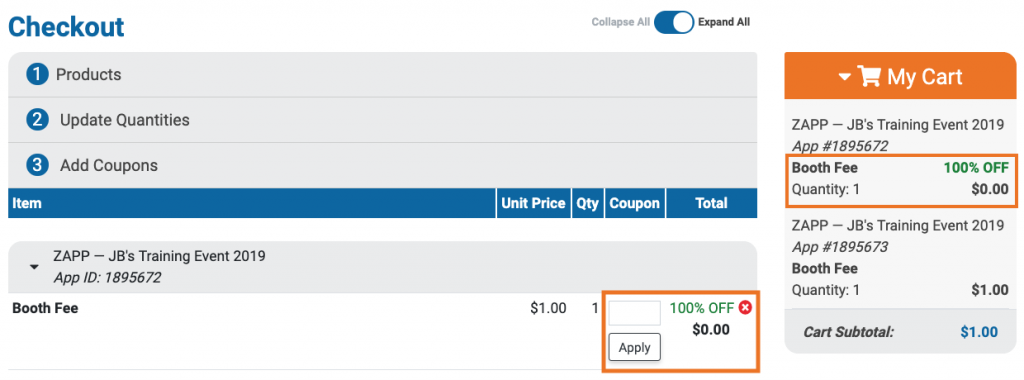
Checkout page showing a 100% discount on an item with an apply coupon option.

TIP: Even if your balance due is $0, you still need to complete checkout by clicking Next Step and then Checkout Free Items.

Did you find this guide helpful?
Previous

Step 4: Submit Payment

Next

Powered by Creative West

InstantDocs Logo