

The Products section in the Checkout displays everything available for you to purchase — for all events you have applied to. The Purchase Deadline column shows you the last date you're able to purchase that product.
To add a product to your cart, click the green Add 🛒 icon, and then click Next Step to move to Step 2.
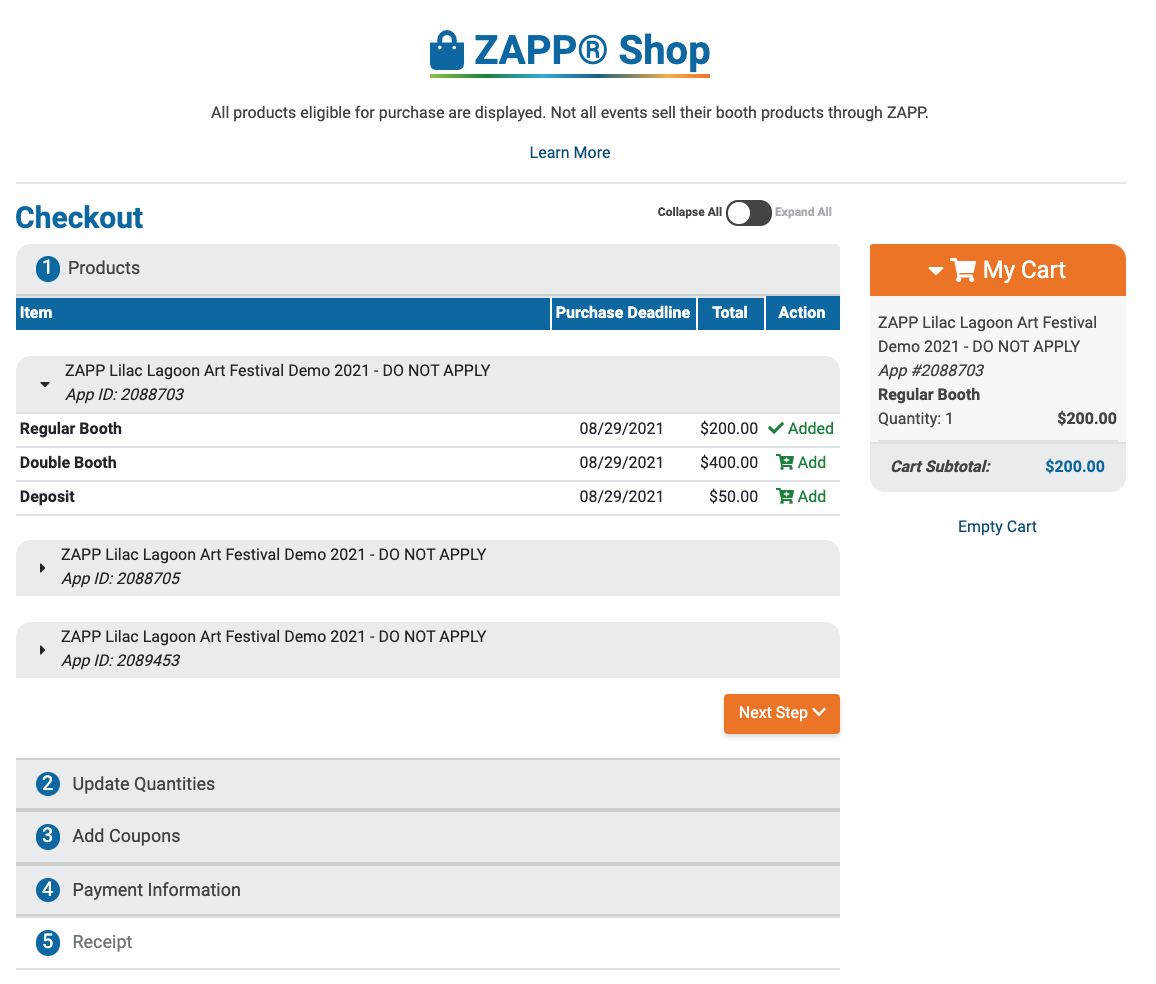
⚡ TIP: If you submitted multiple applications to one event, you will see more than one section for that same event in the Product area. Each section will be differentiated by your Application ID.
You will see “Already purchased” next to the product name for any items you have previously purchased. If a product displays as “SOLD OUT,” the product is not available to purchase. Contact the administrator of the event for next steps.
