

Viewing Applications
Applications are sorted into two main categories: current applications and archived applications. To switch which application category you’re viewing, click on either Applications or Archived.
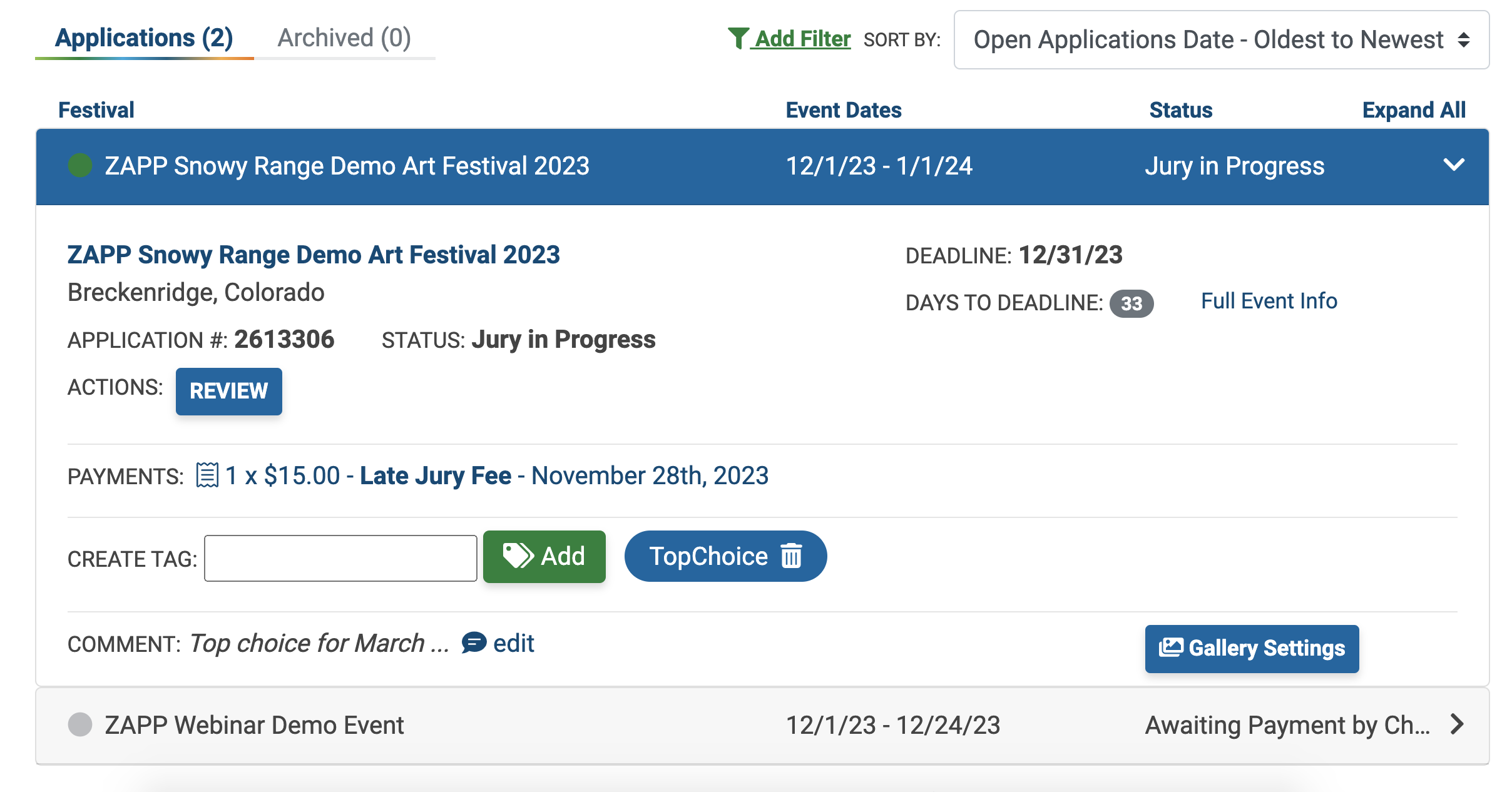
Definitions
Add Filter
Click “Add Filter” to view only applications in a status or group of statuses or to view only applications by tag. ⚡ TIP: To select more than one application status or tag, click and drag your mouse or hold the command (Mac) or control (PC) button and select the tags or statuses for the applications you want to view.
Sort By
Click the drop down to sort your applications by Show Name, Status, Action, Payments, Open Applications Date, or Event Dates.
Expand All/Collapse All
Click “Collapse All” to see only event names, event dates, and your application status. Click “Expand All” to see all application information, tags, comments, and action items.
Application ID
The unique ID attached to your application. Include this ID when communicating with ZAPP or event organizers about your application.
Status
The status your application is currently in. For a breakdown of what each status means, jump to Application Status Definitions.
Actions
Certain actions you may need to take for your application. For a breakdown of what each action item means, jump to Application Actions.
Payments
This section contains a list of all payments made to the event. Click on the payment to view and download a receipt. Learn more about Reviewing Payments.
Tags
Tags help categorize or group your applications. Applications can have up to four tags. To enter a tag, type a word or phrase without spaces into the text box and click Add. Learn more about Tags and Comments.
Comments
Click “add” to leave a comment (visible only to you) on your application to help stay organized. Comments can be up to 250 characters long. Jump to Adding Tags and Comments to Applications.
Notification Date
The date the event organizers will notify you of the status of your application. Not all events share a notification date, so you may not see this field.
Event Galleries
Events on ZAPP can create an Event Gallery with images from Accepted and Confirmed artists. The gallery will include artwork images submitted with the application, basic information, and artist websites (if one was provided). Patrons can browse artists by medium category, search for a specific artist, or sort the gallery by booth number.
