

ZAPP Artist Help Center

ZAPP Artist Help Center

Managing Your Applications

Add Tags And Comments

You can add a tag or leave a comment on any application. Comments or tags can only be seen by you — event administrators will not be able to view your comments or tags.

Last updated on 23 Feb, 2026

How to Add Tags

➕ To tag an application, enter your tag into the “Create Tag” text box and click Add.

🗑️ To delete a tag, click on the trash icon next to the tag.
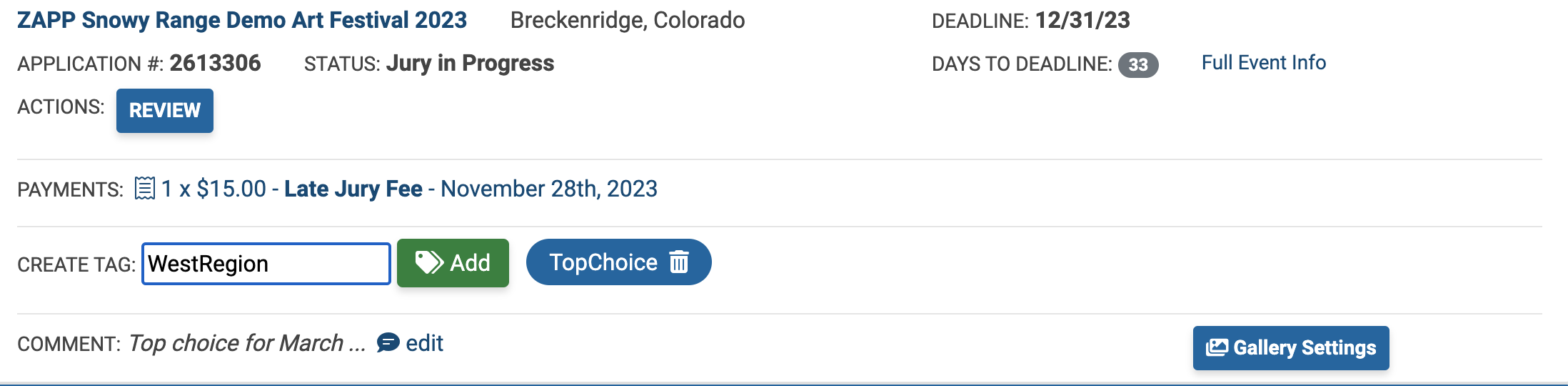
Application details view featuring deadline, status, and a tag management section with a text field and removable tags

Tags must be 12 characters or fewer and cannot contain any spaces. Add up to five tags to any application.

TIP: Applications can also be filtered by tag. Learn more about Filtering and Sorting Applications.

How to Add Comments

➕ To add a comment to an application, click the add link. Enter your comment and click Update.

🗑️ To delete a comment, click Edit, delete any text entered, and click Update.
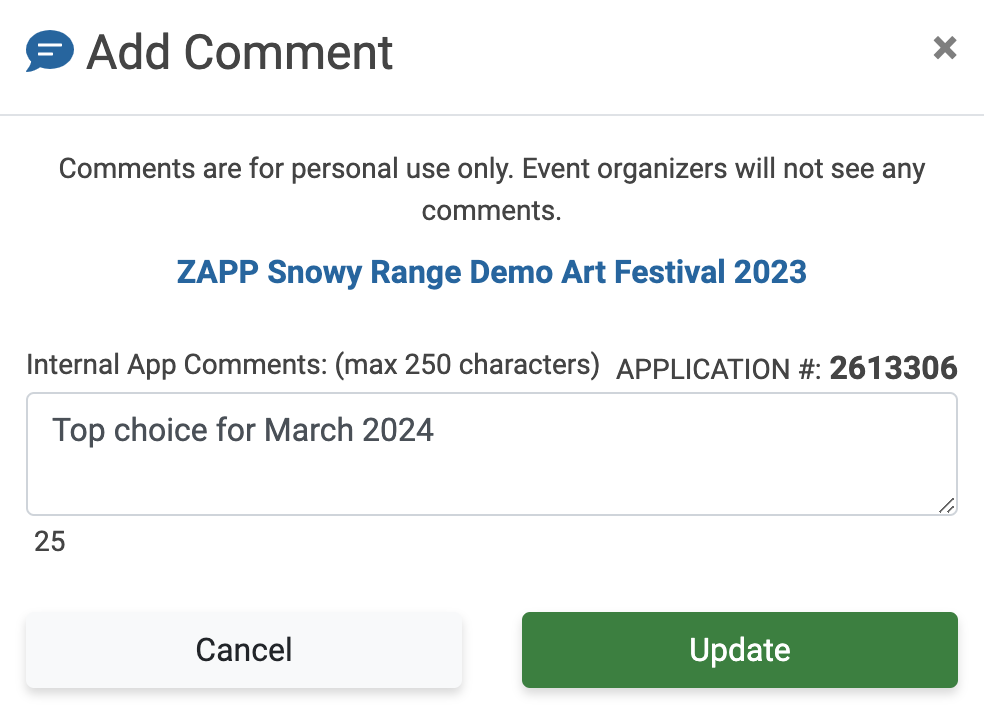
Add Comment modal for ZAPP Snowy Range Demo Art Festival 2023 with comment entry and update option.

Comments can be up to 250 characters.

Did you find this guide helpful?
Previous

Filtering & Sorting Applications

Next

Powered by Creative West

InstantDocs Logo