

How to Submit a Booth Request
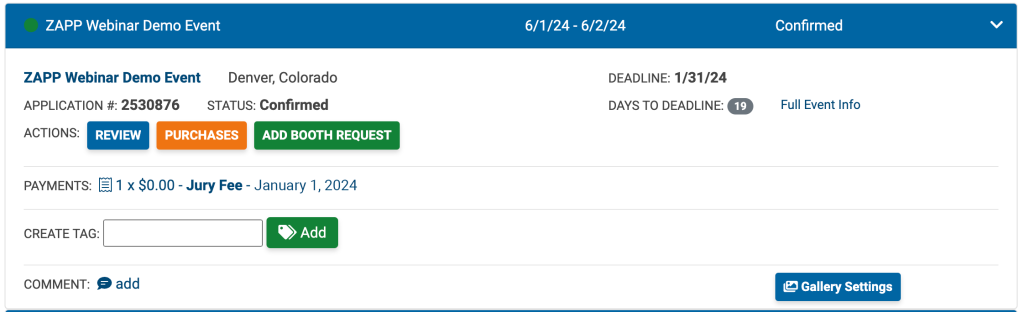
When booth requests are being collected, you will see the Add Booth Request button in the Actions section next to the corresponding show on your My ZAPPlications page.
Click Add Booth Request next to your application.
Review the Booth Request Instructions and view the Event Site Map, if applicable.
Answer the questions provided by the event.
Click Save Progress to save your responses before leaving the page.
Click Submit to submit your booth request.
Review your booth request by clicking Review Booth Request in the Actions section of your application.
Edit your booth request by clicking Edit Booth Request (when available).
Not all shows allow you to edit your booth requests after submitting. Be sure to review your answers for accuracy before submitting. If the event allows edits, you will be able to modify your booth request responses until the booth request deadline.
